# Gemini-API
**Repository Path**: VGfirst/Gemini-API
## Basic Information
- **Project Name**: Gemini-API
- **Description**: ✨ Reverse-engineered Python API for Google Gemini web app
- **Primary Language**: Python
- **License**: AGPL-3.0
- **Default Branch**: master
- **Homepage**: None
- **GVP Project**: No
## Statistics
- **Stars**: 0
- **Forks**: 0
- **Created**: 2026-04-20
- **Last Updated**: 2026-04-20
## Categories & Tags
**Categories**: Uncategorized
**Tags**: None
## README









#  Gemini-API
A reverse-engineered asynchronous Python wrapper for the [Google Gemini](https://gemini.google.com) web app (formerly Bard).
## Features
- **Persistent Cookies** - Automatically refreshes cookies in background. Optimized for always-on services.
- **Image Generation** - Natively supports generating and editing images with natural language.
- **System Prompt** - Supports customizing the model's system prompt with [Gemini Gems](https://gemini.google.com/gems/view).
- **Extension Support** - Supports generating content with [Gemini extensions](https://gemini.google.com/extensions), such as YouTube and Gmail.
- **Classified Outputs** - Categorizes text, thoughts, web images, and AI-generated images in the response.
- **Streaming Mode** - Supports stream generation, yielding partial outputs as they are generated.
- **Official Flavor** - Provides a simple and elegant interface inspired by [Google Generative AI](https://ai.google.dev/tutorials/python_quickstart)'s official API.
- **Asynchronous** - Utilizes `asyncio` to run generation tasks and return outputs efficiently.
## Table of Contents
- [Features](#features)
- [Table of Contents](#table-of-contents)
- [Installation](#installation)
- [Authentication](#authentication)
- [Usage](#usage)
- [Initialization](#initialization)
- [Generate Content](#generate-content)
- [Generate Content with Files](#generate-content-with-files)
- [Conversations Across Multiple Turns](#conversations-across-multiple-turns)
- [Continue Previous Conversations](#continue-previous-conversations)
- [Read Conversation History](#read-conversation-history)
- [Delete Previous Conversations from Gemini History](#delete-previous-conversations-from-gemini-history)
- [Temporary Mode](#temporary-mode)
- [Streaming Mode](#streaming-mode)
- [Select Language Model](#select-language-model)
- [Apply System Prompt with Gemini Gems](#apply-system-prompt-with-gemini-gems)
- [Manage Custom Gems](#manage-custom-gems)
- [Create a Custom Gem](#create-a-custom-gem)
- [Update an Existing Gem](#update-an-existing-gem)
- [Delete a Custom Gem](#delete-a-custom-gem)
- [Retrieve Model's Thought Process](#retrieve-models-thought-process)
- [Retrieve Images in Response](#retrieve-images-in-response)
- [Generate and Edit Images](#generate-and-edit-images)
- [Generate Content with Gemini Extensions](#generate-content-with-gemini-extensions)
- [Check and Switch to Other Reply Candidates](#check-and-switch-to-other-reply-candidates)
- [Logging Configuration](#logging-configuration)
- [References](#references)
- [Stargazers](#stargazers)
## Installation
> [!NOTE]
>
> This package requires Python 3.10 or higher.
Install or update the package with pip.
```sh
pip install -U gemini_webapi
```
Optionally, the package offers a way to automatically import cookies from your local browser via optional dependency `browser-cookie3`. To enable this feature, install `gemini_webapi[browser]` instead. Supported platforms and browsers can be found [here](https://github.com/borisbabic/browser_cookie3?tab=readme-ov-file#contribute).
```sh
pip install -U gemini_webapi[browser]
```
## Authentication
> [!TIP]
>
> If `browser-cookie3` is installed, you can skip this step and go directly to the [usage](#usage) section. Just make sure you are logged in to in your browser.
- Go to and log in with your Google account
- Press F12 to open the web inspector, go to the `Network` tab, and refresh the page
- Click any request and copy the cookie values of `__Secure-1PSID` and `__Secure-1PSIDTS`
> [!NOTE]
>
> If your application is deployed in a containerized environment (e.g. Docker), you may want to persist the cookies with a volume to avoid re-authentication every time the container rebuilds. You can set `GEMINI_COOKIE_PATH` environment variable to specify the path where auto-refreshed cookies are stored. Make sure the path is writable by the application.
>
> Here's part of a sample `docker-compose.yml` file:
```yaml
services:
main:
environment:
GEMINI_COOKIE_PATH: /tmp/gemini_webapi
volumes:
- ./gemini_cookies:/tmp/gemini_webapi
```
> [!NOTE]
>
> The API's auto-cookie-refreshing feature doesn't require `browser-cookie3` and is enabled by default. It allows you to keep the API service running without worrying about cookie expiration.
>
> This feature may require you to log in to your Google account again in the browser. This is expected behavior and won't affect the API's functionality.
>
> To avoid this, it's recommended to get cookies from a separate browser session and close it as soon as possible for best utilization (e.g. a fresh login in the browser's private mode). More details can be found [here](https://github.com/HanaokaYuzu/Gemini-API/issues/6).
## Usage
### Initialization
Import the required packages and initialize a client with your cookies from the previous step. After successful initialization, the API will automatically refresh `__Secure-1PSIDTS` in the background as long as the process is alive.
```python
import asyncio
from gemini_webapi import GeminiClient
# Replace "COOKIE VALUE HERE" with your actual cookie values.
# Leave Secure_1PSIDTS empty if it's not available for your account.
Secure_1PSID = "COOKIE VALUE HERE"
Secure_1PSIDTS = "COOKIE VALUE HERE"
async def main():
# If browser-cookie3 is installed, simply use `client = GeminiClient()`
client = GeminiClient(Secure_1PSID, Secure_1PSIDTS, proxy=None)
await client.init(timeout=30, auto_close=False, close_delay=300, auto_refresh=True)
asyncio.run(main())
```
> [!TIP]
>
> `auto_close` and `close_delay` are optional arguments for automatically closing the client after a certain period of inactivity. This feature is disabled by default. In an always-on service like a chatbot, it's recommended to set `auto_close` to `True` with a reasonable `close_delay` value for better resource management.
### Generate Content
Ask a single-turn question by calling `GeminiClient.generate_content`, which returns a `gemini_webapi.ModelOutput` object containing the generated text, images, thoughts, and conversation metadata.
```python
async def main():
response = await client.generate_content("Hello World!")
print(response.text)
asyncio.run(main())
```
> [!TIP]
>
> Simply use `print(response)` to get the same output if you just want to see the response text.
### Generate Content with Files
Gemini supports file input, including images and documents. Optionally, you can pass files as a list of paths in `str` or `pathlib.Path` to `GeminiClient.generate_content` together with a text prompt.
```python
async def main():
response = await client.generate_content(
"Introduce the contents of these two files. Is there any connection between them?",
files=["assets/sample.pdf", Path("assets/banner.png")],
)
print(response.text)
asyncio.run(main())
```
### Conversations Across Multiple Turns
If you want to keep the conversation continuous, use `GeminiClient.start_chat` to create a `gemini_webapi.ChatSession` object and send messages through it. The conversation history will be handled automatically and updated after each turn.
```python
async def main():
chat = client.start_chat()
response1 = await chat.send_message(
"Introduce the contents of these two files. Is there any connection between them?",
files=["assets/sample.pdf", Path("assets/banner.png")],
)
print(response1.text)
response2 = await chat.send_message(
"Use image generation tool to modify the banner with another font and design."
)
print(response2.text, response2.images, sep="\n\n----------------------------------\n\n")
asyncio.run(main())
```
> [!TIP]
>
> Same as `GeminiClient.generate_content`, `ChatSession.send_message` also accepts `image` as an optional argument.
### Continue Previous Conversations
To manually retrieve previous conversations, you can pass a previous `ChatSession`'s metadata to `GeminiClient.start_chat` when creating a new `ChatSession`. Alternatively, you can persist previous metadata to a file or database if you need to access it after the current Python process has exited.
```python
async def main():
# Start a new chat session
chat = client.start_chat()
response = await chat.send_message("Fine weather today")
# Save chat's metadata
previous_session = chat.metadata
# Load the previous conversation
previous_chat = client.start_chat(metadata=previous_session)
response = await previous_chat.send_message("What was my previous message?")
print(response)
asyncio.run(main())
```
### Read Conversation History
You can read the conversation history of a specific chat by calling `GeminiClient.read_chat` with the chat ID.
```python
async def main():
chat = client.start_chat()
await chat.send_message("What is the capital of France?")
# Read the chat history
history = await client.read_chat(chat.cid)
for turn in history:
print(
f"Input: {turn.user_prompt}\n"
f"Output: {turn.assistant_response}"
"\n\n----------------------------------\n\n"
)
asyncio.run(main())
```
### Delete Previous Conversations from Gemini History
You can delete a specific chat from Gemini history on the server by calling `GeminiClient.delete_chat` with the chat ID.
```python
async def main():
# Start a new chat session
chat = client.start_chat()
await chat.send_message("This is a temporary conversation.")
# Delete the chat
await client.delete_chat(chat.cid)
print(f"Chat deleted: {chat.cid}")
asyncio.run(main())
```
### Temporary Mode
You can start a temporary chat by passing `temporary=True` to `GeminiClient.generate_content` or `ChatSession.send_message`. Temporary chats won't be saved in Gemini history.
```python
async def main():
response = await client.generate_content("Hello World!", temporary=True)
print(response.text, "\n\n----------------------------------\n\n")
chat = client.start_chat()
await chat.send_message("Fine weather today", temporary=False)
response2 = await chat.send_message("What's my last message?", temporary=True)
print(response2.text)
asyncio.run(main())
```
### Streaming Mode
For longer responses, you can use streaming mode to receive partial outputs as they are generated. This provides a more responsive user experience, especially for real-time applications like chatbots.
The `generate_content_stream` method yields `ModelOutput` objects where the `text_delta` attribute contains only the **new characters** received since the last yield, making it easy to display incremental updates.
```python
async def main():
async for chunk in client.generate_content_stream(
"What's the difference between 'await' and 'async for'?"
):
print(chunk.text_delta, end="", flush=True)
print()
asyncio.run(main())
```
> [!TIP]
>
> Streaming mode accepts the same arguments as `generate_content`. You can also use streaming mode in multi-turn conversations with `ChatSession.send_message_stream`.
### Select Language Model
You can specify which language model to use by passing the `model` argument to `GeminiClient.generate_content` or `GeminiClient.start_chat`. The default value is `unspecified`.
Currently available models (as of Mar 16, 2026):
- `unspecified` - Default model
- `gemini-3-pro` - Gemini 3 Pro
- `gemini-3-flash` - Gemini 3 Flash
- `gemini-3-flash-thinking` - Gemini 3 Flash Thinking
```python
from gemini_webapi.constants import Model
async def main():
response1 = await client.generate_content(
"What's your language model version? Reply with the version number only.",
model=Model.BASIC_FLASH,
)
print(f"Model version ({Model.BASIC_FLASH.model_name}): {response1.text}")
chat = client.start_chat(model="gemini-3-pro")
response2 = await chat.send_message("What's your language model version? Reply with the version number only.")
print(f"Model version (gemini-3-pro): {response2.text}")
asyncio.run(main())
```
You can also pass custom model header strings directly to access models that are not listed above.
```python
# "model_name" and "model_header" keys must be present
custom_model = {
"model_name": "xxx",
"model_header": {
"x-goog-ext-525001261-jspb": "[1,null,null,null,'e6fa609c3fa255c0',null,null,null,[4]]"
},
}
response = await client.generate_content(
"What's your model version?",
model=custom_model
)
```
### Apply System Prompt with Gemini Gems
System prompts can be applied to conversations via [Gemini Gems](https://gemini.google.com/gems/view). To use a gem, you can pass the `gem` argument to `GeminiClient.generate_content` or `GeminiClient.start_chat`. `gem` can be either a gem ID string or a `gemini_webapi.Gem` object. Only one gem can be applied to a single conversation.
> [!TIP]
>
> There are some system predefined gems that are not shown to users by default (and therefore may not work properly). Use `client.fetch_gems(include_hidden=True)` to include them in the fetch result.
```python
async def main():
# Fetch all gems for the current account, including both predefined and user-created ones
await client.fetch_gems(include_hidden=False, language="en")
# Once fetched, gems will be cached in `GeminiClient.gems`
gems = client.gems
# Get the gem you want to use
system_gems = gems.filter(predefined=True)
coding_partner = system_gems.get(id="coding-partner")
response1 = await client.generate_content(
"What's your system prompt?",
gem=coding_partner,
)
print(response1.text)
# Another example with a user-created custom gem
# Gem ids are consistent strings. Store them somewhere to avoid fetching gems every time
your_gem = gems.get(name="Your Gem Name")
your_gem_id = your_gem.id
chat = client.start_chat(gem=your_gem_id)
response2 = await chat.send_message("What's your system prompt?")
print(response2)
```
### Manage Custom Gems
You can create, update, and delete your custom gems programmatically with the API. Note that predefined system gems cannot be modified or deleted.
#### Create a Custom Gem
Create a new custom gem with a name, system prompt (instructions), and optional description:
```python
async def main():
# Create a new custom gem
new_gem = await client.create_gem(
name="Python Tutor",
prompt="You are a helpful Python programming tutor.",
description="A specialized gem for Python programming"
)
print(f"Custom gem created: {new_gem}")
# Use the newly created gem in a conversation
response = await client.generate_content(
"Explain how list comprehensions work in Python",
gem=new_gem
)
print(response.text)
asyncio.run(main())
```
#### Update an Existing Gem
> [!NOTE]
>
> When updating a gem, you must provide all parameters (name, prompt, description) even if you only want to change one of them.
```python
async def main():
# Get a custom gem (assuming you have one named "Python Tutor")
await client.fetch_gems()
python_tutor = client.gems.get(name="Python Tutor")
# Update the gem with new instructions
updated_gem = await client.update_gem(
gem=python_tutor, # Can also pass gem ID string
name="Advanced Python Tutor",
prompt="You are an expert Python programming tutor.",
description="An advanced Python programming assistant"
)
print(f"Custom gem updated: {updated_gem}")
asyncio.run(main())
```
#### Delete a Custom Gem
```python
async def main():
# Get the gem to delete
await client.fetch_gems()
gem_to_delete = client.gems.get(name="Advanced Python Tutor")
# Delete the gem
await client.delete_gem(gem_to_delete) # Can also pass gem ID string
print(f"Custom gem deleted: {gem_to_delete.name}")
asyncio.run(main())
```
### Retrieve Model's Thought Process
When using models with thinking capabilities, the model's thought process will be populated in `ModelOutput.thoughts`.
```python
async def main():
response = await client.generate_content(
"What's 1+1?", model="gemini-3-pro"
)
print(response.thoughts)
print(response.text)
asyncio.run(main())
```
### Retrieve Images in Response
Images in the API's output are stored as a list of `gemini_webapi.Image` objects. You can access the image title, URL, and description by calling `Image.title`, `Image.url` and `Image.alt` respectively.
```python
async def main():
response = await client.generate_content("Send me some pictures of cats")
for image in response.images:
print(image, "\n\n----------------------------------\n\n")
asyncio.run(main())
```
### Generate and Edit Images
You can ask Gemini to generate and edit images with Nano Banana, Google's latest image model, using natural language.
> [!IMPORTANT]
>
> Google has some limitations on Gemini's image generation feature, so availability may vary by region/account. Here's a summary copied from [official documentation](https://support.google.com/gemini/answer/14286560) (as of Sep 10, 2025):
>
> > This feature's availability in any specific Gemini app is also limited to the supported languages and countries of that app.
> >
> > For now, this feature isn't available to users under 18.
> >
> > To use this feature, you must be signed in to Gemini Apps.
You can save images returned from Gemini locally by calling `Image.save()`. Optionally, you can specify the file path and file name by passing `path` and `filename` arguments to the function. This works for both `WebImage` and `GeneratedImage`.
```python
async def main():
response = await client.generate_content("Generate some pictures of cats")
for i, image in enumerate(response.images):
await image.save(path="temp/", filename=f"cat_{i}.png", verbose=True)
print(image, "\n\n----------------------------------\n\n")
asyncio.run(main())
```
> [!NOTE]
>
> By default, when asked to send images (like in the previous example), Gemini will send images fetched from the web instead of generating images with an AI model, unless you specifically ask it to "generate" images in your prompt. In this package, web images and generated images are treated differently as `WebImage` and `GeneratedImage`, and are automatically categorized in the output.
### Generate Content with Gemini Extensions
> [!IMPORTANT]
>
> To access Gemini extensions in the API, you must activate them on the [Gemini website](https://gemini.google.com/extensions) first. As with image generation, Google also has limitations on the availability of Gemini extensions. Here's a summary copied from [official documentation](https://support.google.com/gemini/answer/13695044) (as of March 19, 2025):
>
> > To connect apps to Gemini, you must have Gemini Apps Activity on.
> >
> > To use this feature, you must be signed in to Gemini Apps.
> >
> > Important: If you're under 18, Google Workspace and Maps apps currently only work with English prompts in Gemini.
After activating extensions for your account, you can access them in your prompts either in natural language or by starting your prompt with "@" followed by the extension keyword.
```python
async def main():
response1 = await client.generate_content("@Gmail What's the latest message in my mailbox?")
print(response1, "\n\n----------------------------------\n\n")
response2 = await client.generate_content("@Youtube What's the latest activity of Taylor Swift?")
print(response2, "\n\n----------------------------------\n\n")
asyncio.run(main())
```
> [!NOTE]
>
> For region availability, your Google account's **preferred language** only needs to be set to one of the three supported languages listed above. You can change your language settings [here](https://myaccount.google.com/language).
### Check and Switch to Other Reply Candidates
A response from Gemini sometimes contains multiple reply candidates with different generated content. You can check all candidates and choose one to continue the conversation. By default, the first candidate is chosen.
```python
async def main():
# Start a conversation and list all reply candidates
chat = client.start_chat()
response = await chat.send_message("Recommend a science fiction book for me.")
for candidate in response.candidates:
print(candidate, "\n\n----------------------------------\n\n")
if len(response.candidates) > 1:
# Control the ongoing conversation flow by choosing candidate manually
new_candidate = chat.choose_candidate(index=1) # Choose the second candidate here
followup_response = await chat.send_message("Tell me more about it.") # Will generate content based on the chosen candidate
print(new_candidate, followup_response, sep="\n\n----------------------------------\n\n")
else:
print("Only one candidate available.")
asyncio.run(main())
```
### Logging Configuration
This package uses [loguru](https://loguru.readthedocs.io/en/stable/) for logging and exposes a function `set_log_level` to control the log level. You can set the log level to one of the following values: `DEBUG`, `INFO`, `WARNING`, `ERROR`, and `CRITICAL`. The default value is `INFO`.
```python
from gemini_webapi import set_log_level
set_log_level("DEBUG")
```
> [!NOTE]
>
> Calling `set_log_level` for the first time will **globally** remove all existing loguru handlers. You may want to configure logging directly with loguru to avoid this issue and have more advanced control over logging behaviors.
## References
[Google AI Studio](https://ai.google.dev/tutorials/ai-studio_quickstart)
[acheong08/Bard](https://github.com/acheong08/Bard)
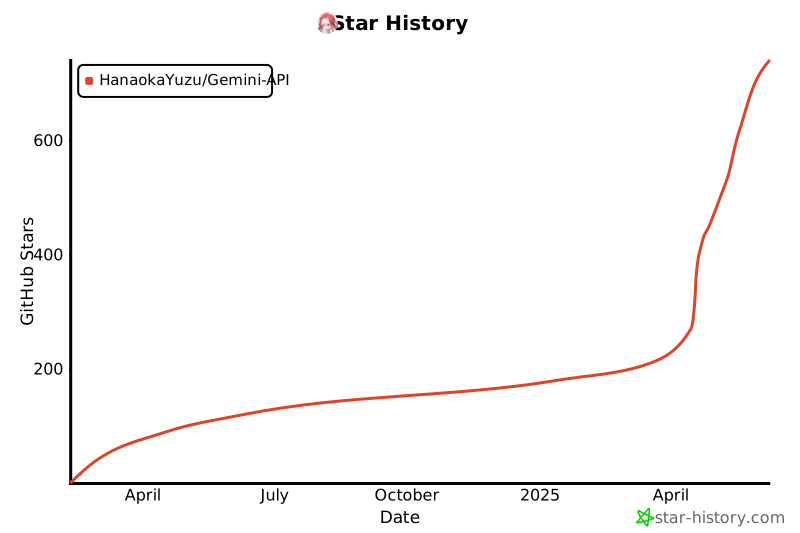
## Stargazers
Gemini-API
A reverse-engineered asynchronous Python wrapper for the [Google Gemini](https://gemini.google.com) web app (formerly Bard).
## Features
- **Persistent Cookies** - Automatically refreshes cookies in background. Optimized for always-on services.
- **Image Generation** - Natively supports generating and editing images with natural language.
- **System Prompt** - Supports customizing the model's system prompt with [Gemini Gems](https://gemini.google.com/gems/view).
- **Extension Support** - Supports generating content with [Gemini extensions](https://gemini.google.com/extensions), such as YouTube and Gmail.
- **Classified Outputs** - Categorizes text, thoughts, web images, and AI-generated images in the response.
- **Streaming Mode** - Supports stream generation, yielding partial outputs as they are generated.
- **Official Flavor** - Provides a simple and elegant interface inspired by [Google Generative AI](https://ai.google.dev/tutorials/python_quickstart)'s official API.
- **Asynchronous** - Utilizes `asyncio` to run generation tasks and return outputs efficiently.
## Table of Contents
- [Features](#features)
- [Table of Contents](#table-of-contents)
- [Installation](#installation)
- [Authentication](#authentication)
- [Usage](#usage)
- [Initialization](#initialization)
- [Generate Content](#generate-content)
- [Generate Content with Files](#generate-content-with-files)
- [Conversations Across Multiple Turns](#conversations-across-multiple-turns)
- [Continue Previous Conversations](#continue-previous-conversations)
- [Read Conversation History](#read-conversation-history)
- [Delete Previous Conversations from Gemini History](#delete-previous-conversations-from-gemini-history)
- [Temporary Mode](#temporary-mode)
- [Streaming Mode](#streaming-mode)
- [Select Language Model](#select-language-model)
- [Apply System Prompt with Gemini Gems](#apply-system-prompt-with-gemini-gems)
- [Manage Custom Gems](#manage-custom-gems)
- [Create a Custom Gem](#create-a-custom-gem)
- [Update an Existing Gem](#update-an-existing-gem)
- [Delete a Custom Gem](#delete-a-custom-gem)
- [Retrieve Model's Thought Process](#retrieve-models-thought-process)
- [Retrieve Images in Response](#retrieve-images-in-response)
- [Generate and Edit Images](#generate-and-edit-images)
- [Generate Content with Gemini Extensions](#generate-content-with-gemini-extensions)
- [Check and Switch to Other Reply Candidates](#check-and-switch-to-other-reply-candidates)
- [Logging Configuration](#logging-configuration)
- [References](#references)
- [Stargazers](#stargazers)
## Installation
> [!NOTE]
>
> This package requires Python 3.10 or higher.
Install or update the package with pip.
```sh
pip install -U gemini_webapi
```
Optionally, the package offers a way to automatically import cookies from your local browser via optional dependency `browser-cookie3`. To enable this feature, install `gemini_webapi[browser]` instead. Supported platforms and browsers can be found [here](https://github.com/borisbabic/browser_cookie3?tab=readme-ov-file#contribute).
```sh
pip install -U gemini_webapi[browser]
```
## Authentication
> [!TIP]
>
> If `browser-cookie3` is installed, you can skip this step and go directly to the [usage](#usage) section. Just make sure you are logged in to in your browser.
- Go to and log in with your Google account
- Press F12 to open the web inspector, go to the `Network` tab, and refresh the page
- Click any request and copy the cookie values of `__Secure-1PSID` and `__Secure-1PSIDTS`
> [!NOTE]
>
> If your application is deployed in a containerized environment (e.g. Docker), you may want to persist the cookies with a volume to avoid re-authentication every time the container rebuilds. You can set `GEMINI_COOKIE_PATH` environment variable to specify the path where auto-refreshed cookies are stored. Make sure the path is writable by the application.
>
> Here's part of a sample `docker-compose.yml` file:
```yaml
services:
main:
environment:
GEMINI_COOKIE_PATH: /tmp/gemini_webapi
volumes:
- ./gemini_cookies:/tmp/gemini_webapi
```
> [!NOTE]
>
> The API's auto-cookie-refreshing feature doesn't require `browser-cookie3` and is enabled by default. It allows you to keep the API service running without worrying about cookie expiration.
>
> This feature may require you to log in to your Google account again in the browser. This is expected behavior and won't affect the API's functionality.
>
> To avoid this, it's recommended to get cookies from a separate browser session and close it as soon as possible for best utilization (e.g. a fresh login in the browser's private mode). More details can be found [here](https://github.com/HanaokaYuzu/Gemini-API/issues/6).
## Usage
### Initialization
Import the required packages and initialize a client with your cookies from the previous step. After successful initialization, the API will automatically refresh `__Secure-1PSIDTS` in the background as long as the process is alive.
```python
import asyncio
from gemini_webapi import GeminiClient
# Replace "COOKIE VALUE HERE" with your actual cookie values.
# Leave Secure_1PSIDTS empty if it's not available for your account.
Secure_1PSID = "COOKIE VALUE HERE"
Secure_1PSIDTS = "COOKIE VALUE HERE"
async def main():
# If browser-cookie3 is installed, simply use `client = GeminiClient()`
client = GeminiClient(Secure_1PSID, Secure_1PSIDTS, proxy=None)
await client.init(timeout=30, auto_close=False, close_delay=300, auto_refresh=True)
asyncio.run(main())
```
> [!TIP]
>
> `auto_close` and `close_delay` are optional arguments for automatically closing the client after a certain period of inactivity. This feature is disabled by default. In an always-on service like a chatbot, it's recommended to set `auto_close` to `True` with a reasonable `close_delay` value for better resource management.
### Generate Content
Ask a single-turn question by calling `GeminiClient.generate_content`, which returns a `gemini_webapi.ModelOutput` object containing the generated text, images, thoughts, and conversation metadata.
```python
async def main():
response = await client.generate_content("Hello World!")
print(response.text)
asyncio.run(main())
```
> [!TIP]
>
> Simply use `print(response)` to get the same output if you just want to see the response text.
### Generate Content with Files
Gemini supports file input, including images and documents. Optionally, you can pass files as a list of paths in `str` or `pathlib.Path` to `GeminiClient.generate_content` together with a text prompt.
```python
async def main():
response = await client.generate_content(
"Introduce the contents of these two files. Is there any connection between them?",
files=["assets/sample.pdf", Path("assets/banner.png")],
)
print(response.text)
asyncio.run(main())
```
### Conversations Across Multiple Turns
If you want to keep the conversation continuous, use `GeminiClient.start_chat` to create a `gemini_webapi.ChatSession` object and send messages through it. The conversation history will be handled automatically and updated after each turn.
```python
async def main():
chat = client.start_chat()
response1 = await chat.send_message(
"Introduce the contents of these two files. Is there any connection between them?",
files=["assets/sample.pdf", Path("assets/banner.png")],
)
print(response1.text)
response2 = await chat.send_message(
"Use image generation tool to modify the banner with another font and design."
)
print(response2.text, response2.images, sep="\n\n----------------------------------\n\n")
asyncio.run(main())
```
> [!TIP]
>
> Same as `GeminiClient.generate_content`, `ChatSession.send_message` also accepts `image` as an optional argument.
### Continue Previous Conversations
To manually retrieve previous conversations, you can pass a previous `ChatSession`'s metadata to `GeminiClient.start_chat` when creating a new `ChatSession`. Alternatively, you can persist previous metadata to a file or database if you need to access it after the current Python process has exited.
```python
async def main():
# Start a new chat session
chat = client.start_chat()
response = await chat.send_message("Fine weather today")
# Save chat's metadata
previous_session = chat.metadata
# Load the previous conversation
previous_chat = client.start_chat(metadata=previous_session)
response = await previous_chat.send_message("What was my previous message?")
print(response)
asyncio.run(main())
```
### Read Conversation History
You can read the conversation history of a specific chat by calling `GeminiClient.read_chat` with the chat ID.
```python
async def main():
chat = client.start_chat()
await chat.send_message("What is the capital of France?")
# Read the chat history
history = await client.read_chat(chat.cid)
for turn in history:
print(
f"Input: {turn.user_prompt}\n"
f"Output: {turn.assistant_response}"
"\n\n----------------------------------\n\n"
)
asyncio.run(main())
```
### Delete Previous Conversations from Gemini History
You can delete a specific chat from Gemini history on the server by calling `GeminiClient.delete_chat` with the chat ID.
```python
async def main():
# Start a new chat session
chat = client.start_chat()
await chat.send_message("This is a temporary conversation.")
# Delete the chat
await client.delete_chat(chat.cid)
print(f"Chat deleted: {chat.cid}")
asyncio.run(main())
```
### Temporary Mode
You can start a temporary chat by passing `temporary=True` to `GeminiClient.generate_content` or `ChatSession.send_message`. Temporary chats won't be saved in Gemini history.
```python
async def main():
response = await client.generate_content("Hello World!", temporary=True)
print(response.text, "\n\n----------------------------------\n\n")
chat = client.start_chat()
await chat.send_message("Fine weather today", temporary=False)
response2 = await chat.send_message("What's my last message?", temporary=True)
print(response2.text)
asyncio.run(main())
```
### Streaming Mode
For longer responses, you can use streaming mode to receive partial outputs as they are generated. This provides a more responsive user experience, especially for real-time applications like chatbots.
The `generate_content_stream` method yields `ModelOutput` objects where the `text_delta` attribute contains only the **new characters** received since the last yield, making it easy to display incremental updates.
```python
async def main():
async for chunk in client.generate_content_stream(
"What's the difference between 'await' and 'async for'?"
):
print(chunk.text_delta, end="", flush=True)
print()
asyncio.run(main())
```
> [!TIP]
>
> Streaming mode accepts the same arguments as `generate_content`. You can also use streaming mode in multi-turn conversations with `ChatSession.send_message_stream`.
### Select Language Model
You can specify which language model to use by passing the `model` argument to `GeminiClient.generate_content` or `GeminiClient.start_chat`. The default value is `unspecified`.
Currently available models (as of Mar 16, 2026):
- `unspecified` - Default model
- `gemini-3-pro` - Gemini 3 Pro
- `gemini-3-flash` - Gemini 3 Flash
- `gemini-3-flash-thinking` - Gemini 3 Flash Thinking
```python
from gemini_webapi.constants import Model
async def main():
response1 = await client.generate_content(
"What's your language model version? Reply with the version number only.",
model=Model.BASIC_FLASH,
)
print(f"Model version ({Model.BASIC_FLASH.model_name}): {response1.text}")
chat = client.start_chat(model="gemini-3-pro")
response2 = await chat.send_message("What's your language model version? Reply with the version number only.")
print(f"Model version (gemini-3-pro): {response2.text}")
asyncio.run(main())
```
You can also pass custom model header strings directly to access models that are not listed above.
```python
# "model_name" and "model_header" keys must be present
custom_model = {
"model_name": "xxx",
"model_header": {
"x-goog-ext-525001261-jspb": "[1,null,null,null,'e6fa609c3fa255c0',null,null,null,[4]]"
},
}
response = await client.generate_content(
"What's your model version?",
model=custom_model
)
```
### Apply System Prompt with Gemini Gems
System prompts can be applied to conversations via [Gemini Gems](https://gemini.google.com/gems/view). To use a gem, you can pass the `gem` argument to `GeminiClient.generate_content` or `GeminiClient.start_chat`. `gem` can be either a gem ID string or a `gemini_webapi.Gem` object. Only one gem can be applied to a single conversation.
> [!TIP]
>
> There are some system predefined gems that are not shown to users by default (and therefore may not work properly). Use `client.fetch_gems(include_hidden=True)` to include them in the fetch result.
```python
async def main():
# Fetch all gems for the current account, including both predefined and user-created ones
await client.fetch_gems(include_hidden=False, language="en")
# Once fetched, gems will be cached in `GeminiClient.gems`
gems = client.gems
# Get the gem you want to use
system_gems = gems.filter(predefined=True)
coding_partner = system_gems.get(id="coding-partner")
response1 = await client.generate_content(
"What's your system prompt?",
gem=coding_partner,
)
print(response1.text)
# Another example with a user-created custom gem
# Gem ids are consistent strings. Store them somewhere to avoid fetching gems every time
your_gem = gems.get(name="Your Gem Name")
your_gem_id = your_gem.id
chat = client.start_chat(gem=your_gem_id)
response2 = await chat.send_message("What's your system prompt?")
print(response2)
```
### Manage Custom Gems
You can create, update, and delete your custom gems programmatically with the API. Note that predefined system gems cannot be modified or deleted.
#### Create a Custom Gem
Create a new custom gem with a name, system prompt (instructions), and optional description:
```python
async def main():
# Create a new custom gem
new_gem = await client.create_gem(
name="Python Tutor",
prompt="You are a helpful Python programming tutor.",
description="A specialized gem for Python programming"
)
print(f"Custom gem created: {new_gem}")
# Use the newly created gem in a conversation
response = await client.generate_content(
"Explain how list comprehensions work in Python",
gem=new_gem
)
print(response.text)
asyncio.run(main())
```
#### Update an Existing Gem
> [!NOTE]
>
> When updating a gem, you must provide all parameters (name, prompt, description) even if you only want to change one of them.
```python
async def main():
# Get a custom gem (assuming you have one named "Python Tutor")
await client.fetch_gems()
python_tutor = client.gems.get(name="Python Tutor")
# Update the gem with new instructions
updated_gem = await client.update_gem(
gem=python_tutor, # Can also pass gem ID string
name="Advanced Python Tutor",
prompt="You are an expert Python programming tutor.",
description="An advanced Python programming assistant"
)
print(f"Custom gem updated: {updated_gem}")
asyncio.run(main())
```
#### Delete a Custom Gem
```python
async def main():
# Get the gem to delete
await client.fetch_gems()
gem_to_delete = client.gems.get(name="Advanced Python Tutor")
# Delete the gem
await client.delete_gem(gem_to_delete) # Can also pass gem ID string
print(f"Custom gem deleted: {gem_to_delete.name}")
asyncio.run(main())
```
### Retrieve Model's Thought Process
When using models with thinking capabilities, the model's thought process will be populated in `ModelOutput.thoughts`.
```python
async def main():
response = await client.generate_content(
"What's 1+1?", model="gemini-3-pro"
)
print(response.thoughts)
print(response.text)
asyncio.run(main())
```
### Retrieve Images in Response
Images in the API's output are stored as a list of `gemini_webapi.Image` objects. You can access the image title, URL, and description by calling `Image.title`, `Image.url` and `Image.alt` respectively.
```python
async def main():
response = await client.generate_content("Send me some pictures of cats")
for image in response.images:
print(image, "\n\n----------------------------------\n\n")
asyncio.run(main())
```
### Generate and Edit Images
You can ask Gemini to generate and edit images with Nano Banana, Google's latest image model, using natural language.
> [!IMPORTANT]
>
> Google has some limitations on Gemini's image generation feature, so availability may vary by region/account. Here's a summary copied from [official documentation](https://support.google.com/gemini/answer/14286560) (as of Sep 10, 2025):
>
> > This feature's availability in any specific Gemini app is also limited to the supported languages and countries of that app.
> >
> > For now, this feature isn't available to users under 18.
> >
> > To use this feature, you must be signed in to Gemini Apps.
You can save images returned from Gemini locally by calling `Image.save()`. Optionally, you can specify the file path and file name by passing `path` and `filename` arguments to the function. This works for both `WebImage` and `GeneratedImage`.
```python
async def main():
response = await client.generate_content("Generate some pictures of cats")
for i, image in enumerate(response.images):
await image.save(path="temp/", filename=f"cat_{i}.png", verbose=True)
print(image, "\n\n----------------------------------\n\n")
asyncio.run(main())
```
> [!NOTE]
>
> By default, when asked to send images (like in the previous example), Gemini will send images fetched from the web instead of generating images with an AI model, unless you specifically ask it to "generate" images in your prompt. In this package, web images and generated images are treated differently as `WebImage` and `GeneratedImage`, and are automatically categorized in the output.
### Generate Content with Gemini Extensions
> [!IMPORTANT]
>
> To access Gemini extensions in the API, you must activate them on the [Gemini website](https://gemini.google.com/extensions) first. As with image generation, Google also has limitations on the availability of Gemini extensions. Here's a summary copied from [official documentation](https://support.google.com/gemini/answer/13695044) (as of March 19, 2025):
>
> > To connect apps to Gemini, you must have Gemini Apps Activity on.
> >
> > To use this feature, you must be signed in to Gemini Apps.
> >
> > Important: If you're under 18, Google Workspace and Maps apps currently only work with English prompts in Gemini.
After activating extensions for your account, you can access them in your prompts either in natural language or by starting your prompt with "@" followed by the extension keyword.
```python
async def main():
response1 = await client.generate_content("@Gmail What's the latest message in my mailbox?")
print(response1, "\n\n----------------------------------\n\n")
response2 = await client.generate_content("@Youtube What's the latest activity of Taylor Swift?")
print(response2, "\n\n----------------------------------\n\n")
asyncio.run(main())
```
> [!NOTE]
>
> For region availability, your Google account's **preferred language** only needs to be set to one of the three supported languages listed above. You can change your language settings [here](https://myaccount.google.com/language).
### Check and Switch to Other Reply Candidates
A response from Gemini sometimes contains multiple reply candidates with different generated content. You can check all candidates and choose one to continue the conversation. By default, the first candidate is chosen.
```python
async def main():
# Start a conversation and list all reply candidates
chat = client.start_chat()
response = await chat.send_message("Recommend a science fiction book for me.")
for candidate in response.candidates:
print(candidate, "\n\n----------------------------------\n\n")
if len(response.candidates) > 1:
# Control the ongoing conversation flow by choosing candidate manually
new_candidate = chat.choose_candidate(index=1) # Choose the second candidate here
followup_response = await chat.send_message("Tell me more about it.") # Will generate content based on the chosen candidate
print(new_candidate, followup_response, sep="\n\n----------------------------------\n\n")
else:
print("Only one candidate available.")
asyncio.run(main())
```
### Logging Configuration
This package uses [loguru](https://loguru.readthedocs.io/en/stable/) for logging and exposes a function `set_log_level` to control the log level. You can set the log level to one of the following values: `DEBUG`, `INFO`, `WARNING`, `ERROR`, and `CRITICAL`. The default value is `INFO`.
```python
from gemini_webapi import set_log_level
set_log_level("DEBUG")
```
> [!NOTE]
>
> Calling `set_log_level` for the first time will **globally** remove all existing loguru handlers. You may want to configure logging directly with loguru to avoid this issue and have more advanced control over logging behaviors.
## References
[Google AI Studio](https://ai.google.dev/tutorials/ai-studio_quickstart)
[acheong08/Bard](https://github.com/acheong08/Bard)
## Stargazers